
Docs / Quickstart
Quickstart: bulk download from the Gmail list
Start on a mail list (inbox, label, or search). Bulk download from an already-opened email detail view is not supported — go back to the list first.
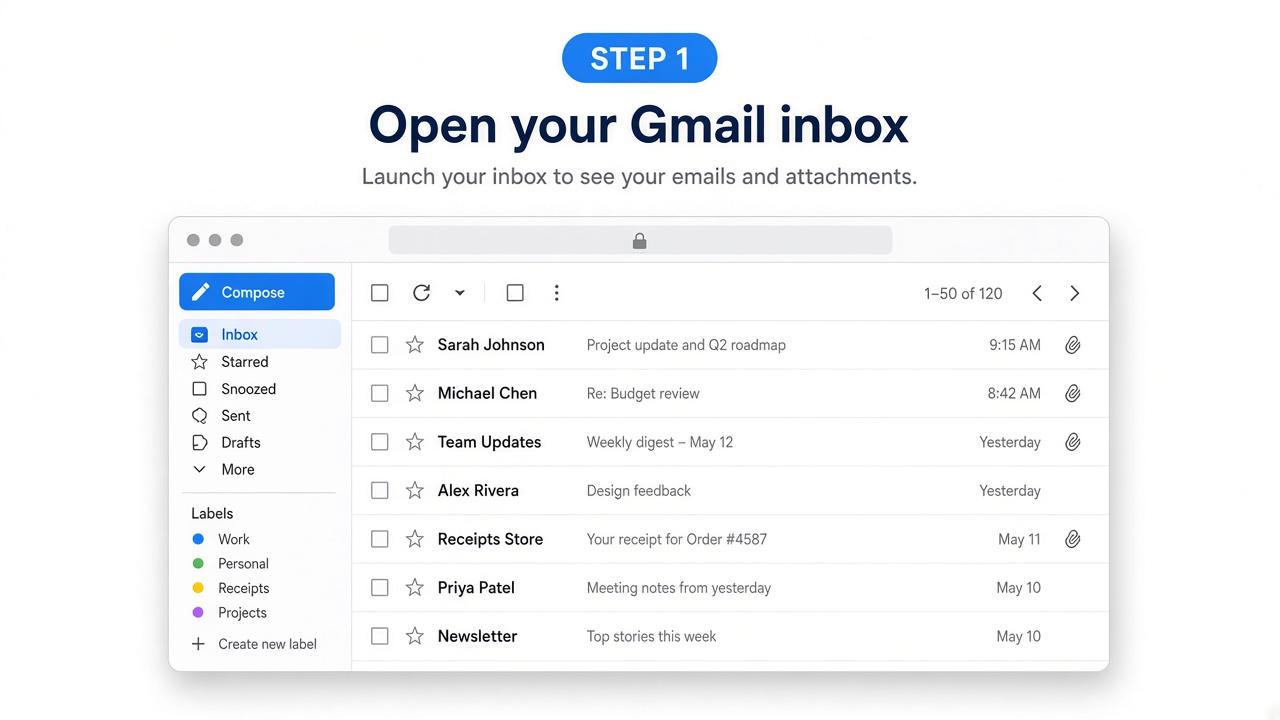
1. Open Gmail mail list
Go to mail.google.com and stay on an inbox or label list (not an opened email).
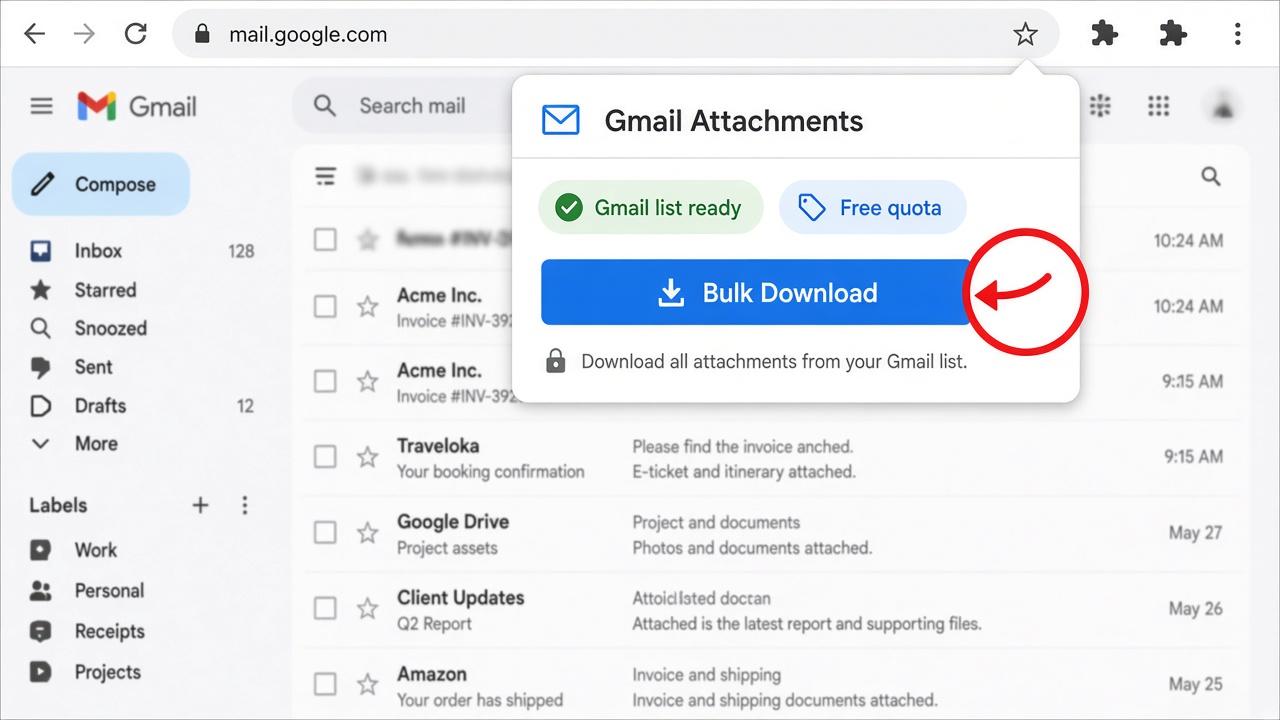
2. Click Bulk Download
Open the extension from the toolbar and press Bulk Download. Only the current Gmail list page is scanned.
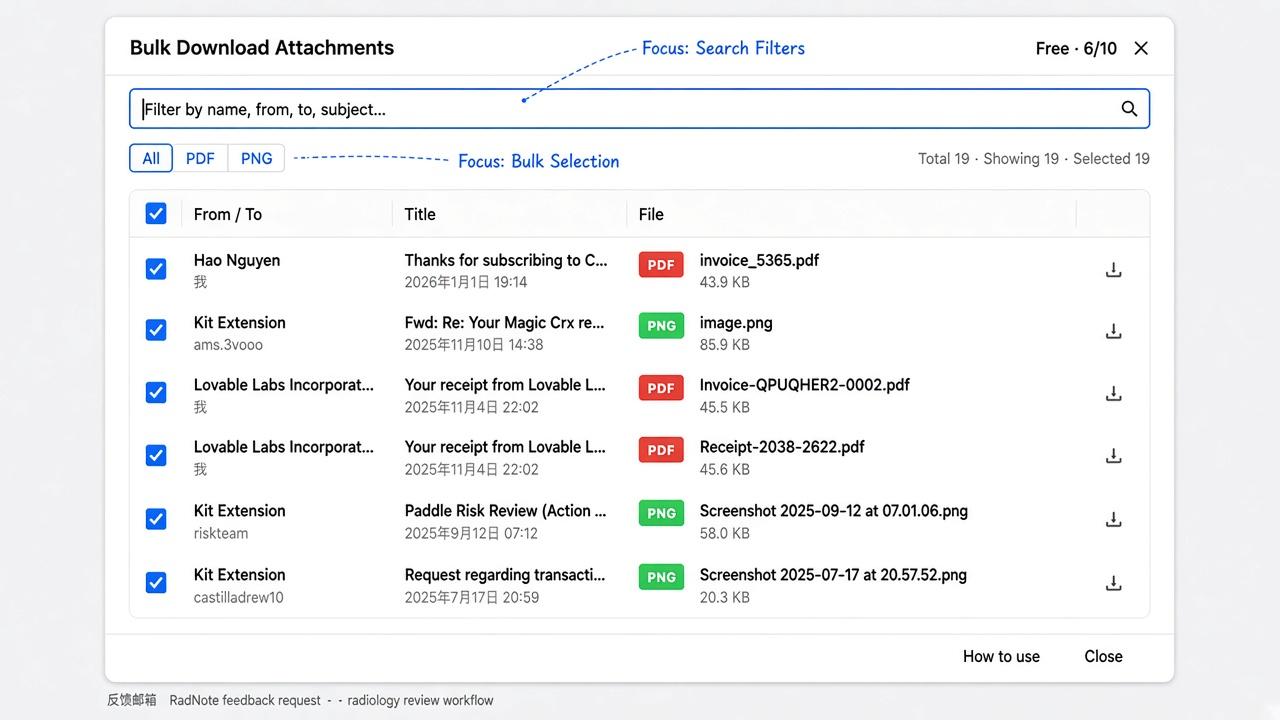
3. Filter and select
Use search and file-type filters, then check the attachments you want.
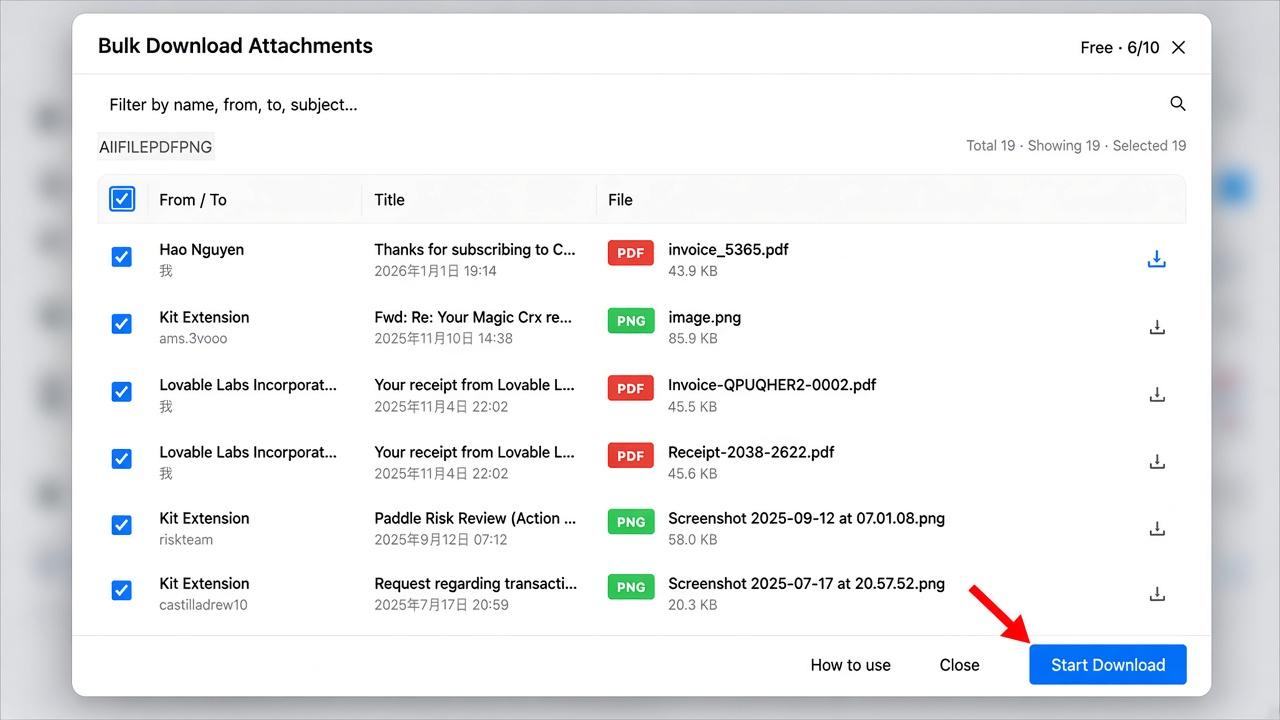
4. Start Download
Press Start Download, or use the download icon on a single row. Files save one by one to your computer.
Tip: stop repeated save dialogs
- Open Chrome Settings → Downloads
- Turn off “Ask where to save each file before downloading”
- Run Start Download again
Free limit & trial
Free: up to 10 unique attachments per day. Sign in to start a 3-day trial with full features (unlimited downloads). Pro is $5.99/month after the trial — see pricing.